
WebCashFlow: Subscriptions
When your trial ends
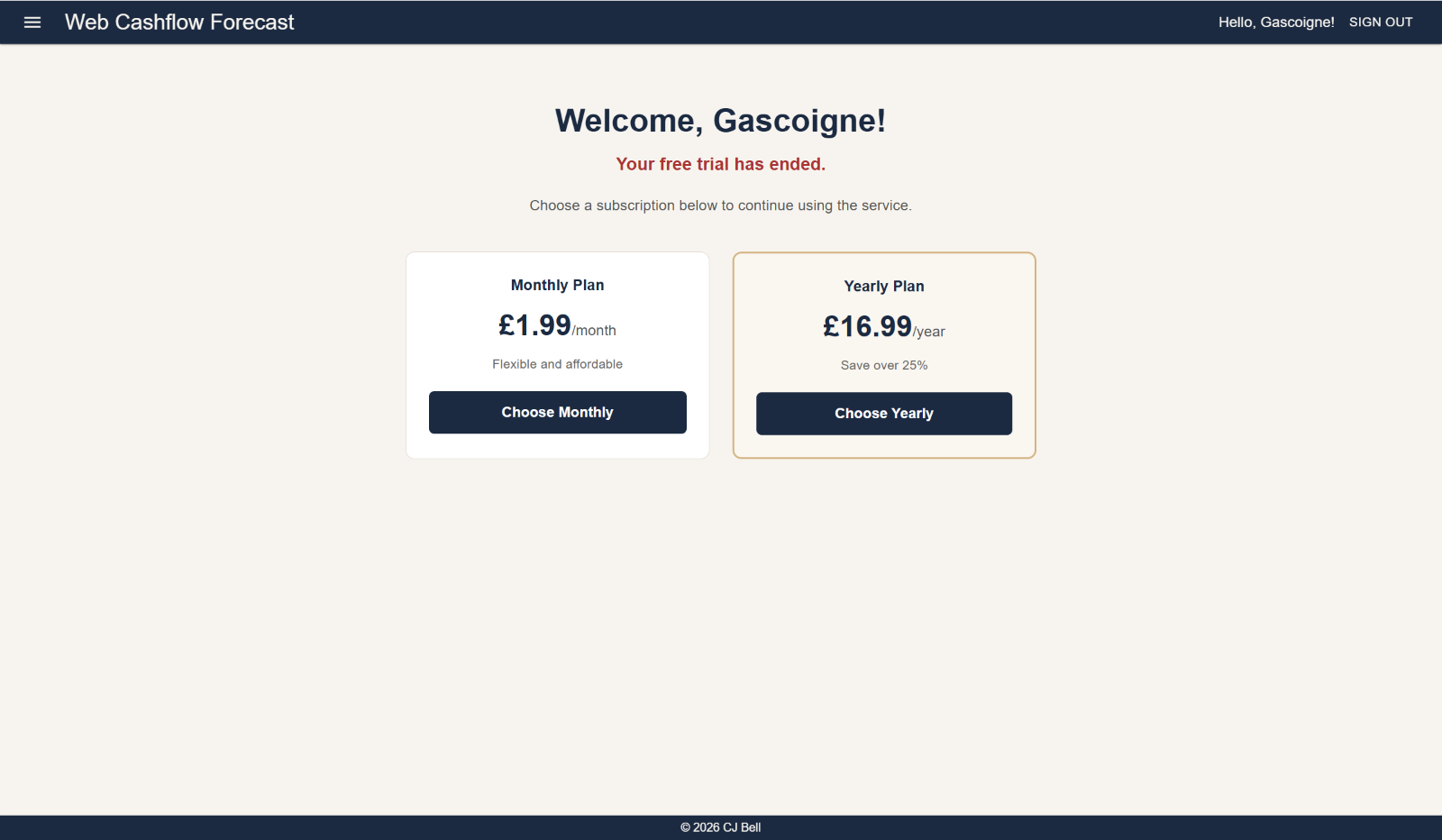
There is no need to wait until your trial ends to take out a subscription. However, when your trial expires the next time you sign-in the welcome screen will show that your trial has ended and that you need a subscription to continue using the service.
Click to enlarge & Esc to close
Subscribing
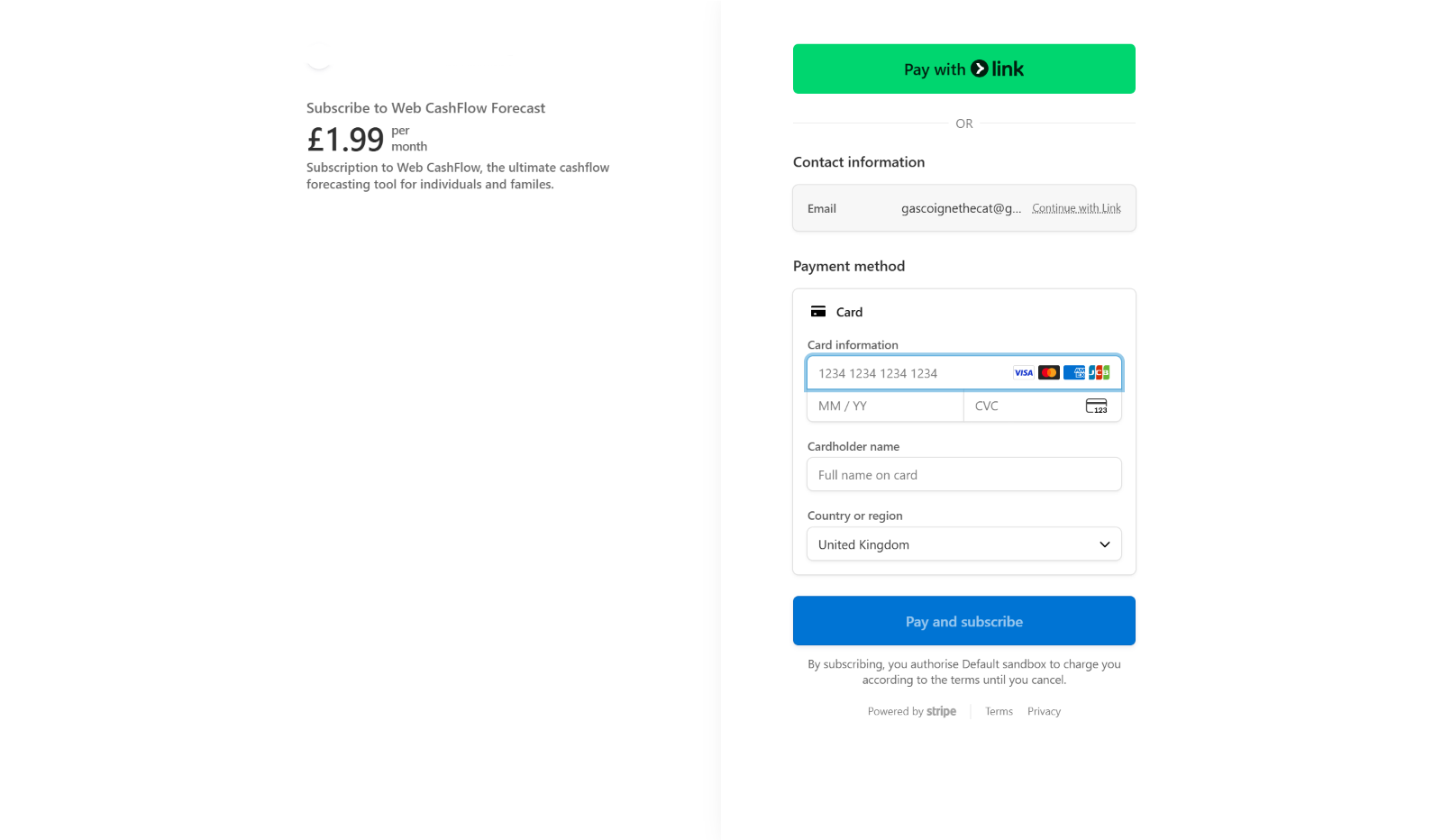
To subscribe, simply select whether you would like a monthly or annual subscription. In both cases you will be re-directed to a Stripe payment portal where you will need to enter your card details and click 'Pay and subscribe'.
Click to enlarge & Esc to close
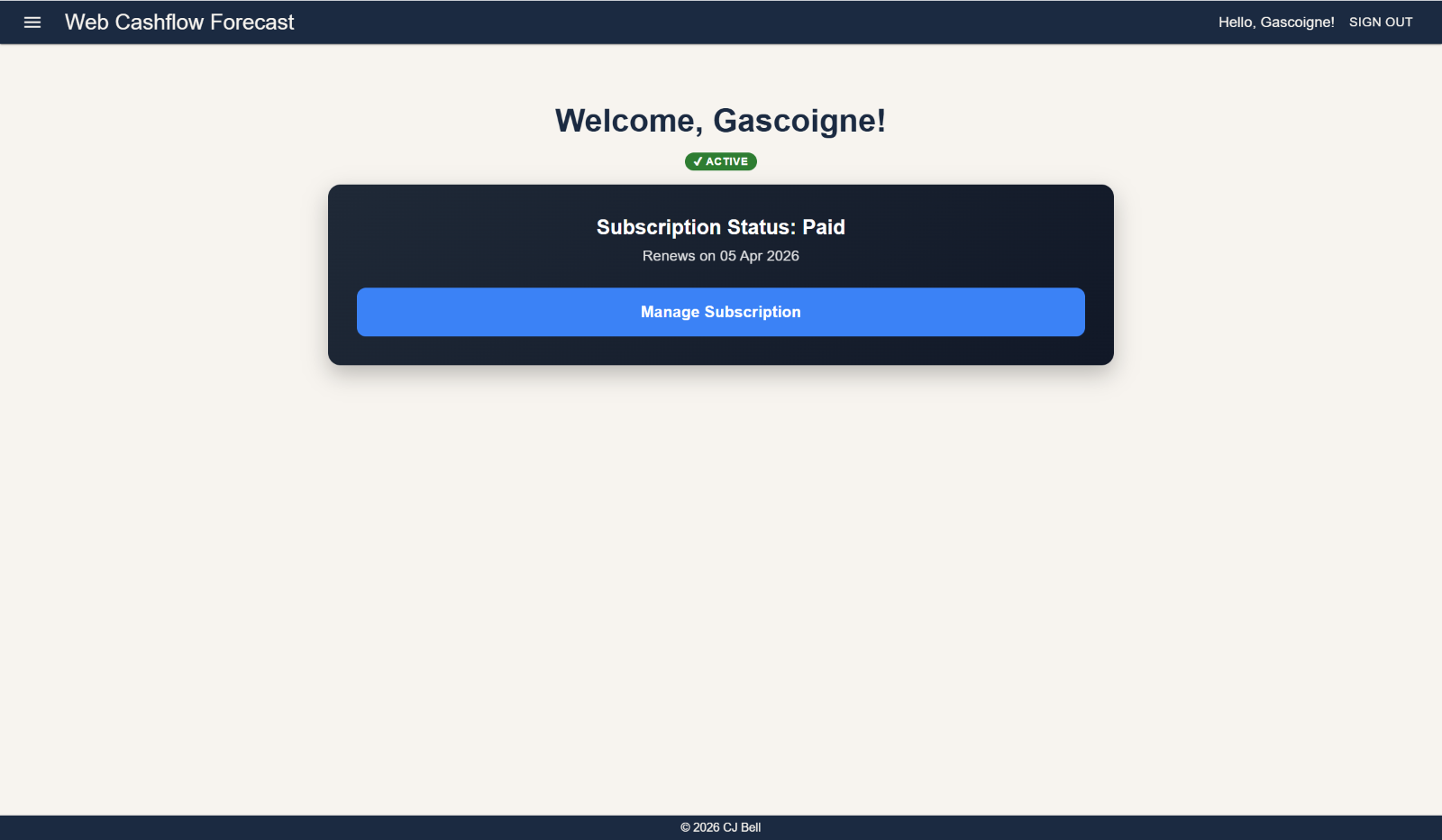
Once processing has completed you will be returned to WebCashFlow to this page showing that you have an active subscription and its renewal date. This is the Subscriptions page which can also be reached from the menu.
Click to enlarge & Esc to close
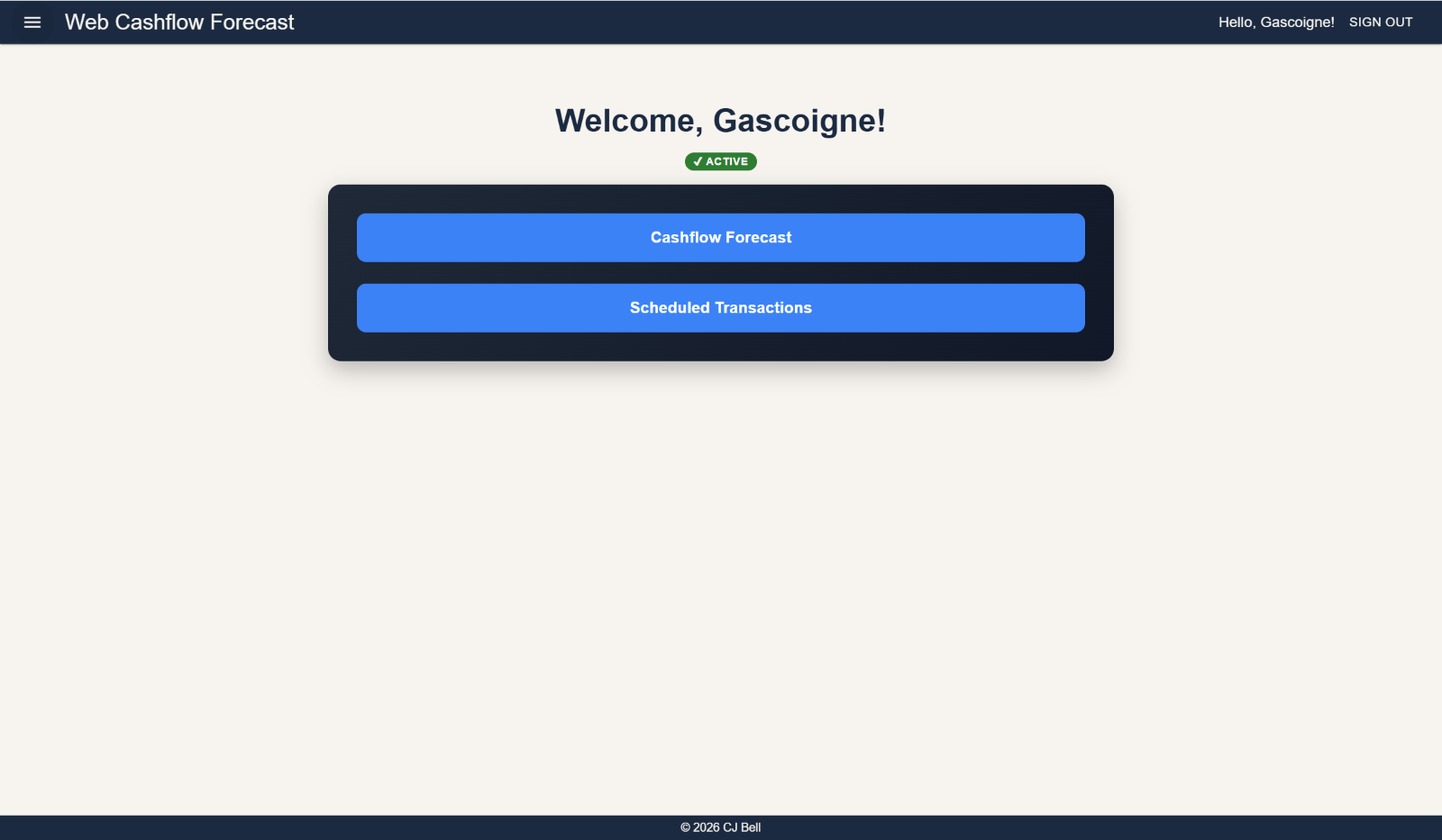
From now on, whilst you have a valid subscription, when you sign in you will be directed to the 'active subscription' page which has short-cut buttons to the two main pages, 'Cashflow Forecast' and 'Scheduled Transaction'. I the normal course of events these are likely to be the only pages you need.
Click to enlarge & Esc to close
Managing your Subscription
In the ordinary course of events you don't need to take any action regarding the renewal of your subscription; it will renew automatically.
However, they may be times when you need to make changes to your subscription.
To manage your subscription select 'My Subscription' from the menu and click 'Manage Subscription'. You will be re-directed to the Stripe portal. Here you will be able to
- Cancel your subscription
- Upgrade your subscription to annual if you have a monthly subscription
- Change your payment method
- View and download invoices and receipts
Cancelling your subscription
You can cancel your subscription at any time by 'Managing your Subscription', but please note that the cancellation becomes effective at the end of the current subscription period (i.e. at the next renewal date).
Deleting your data
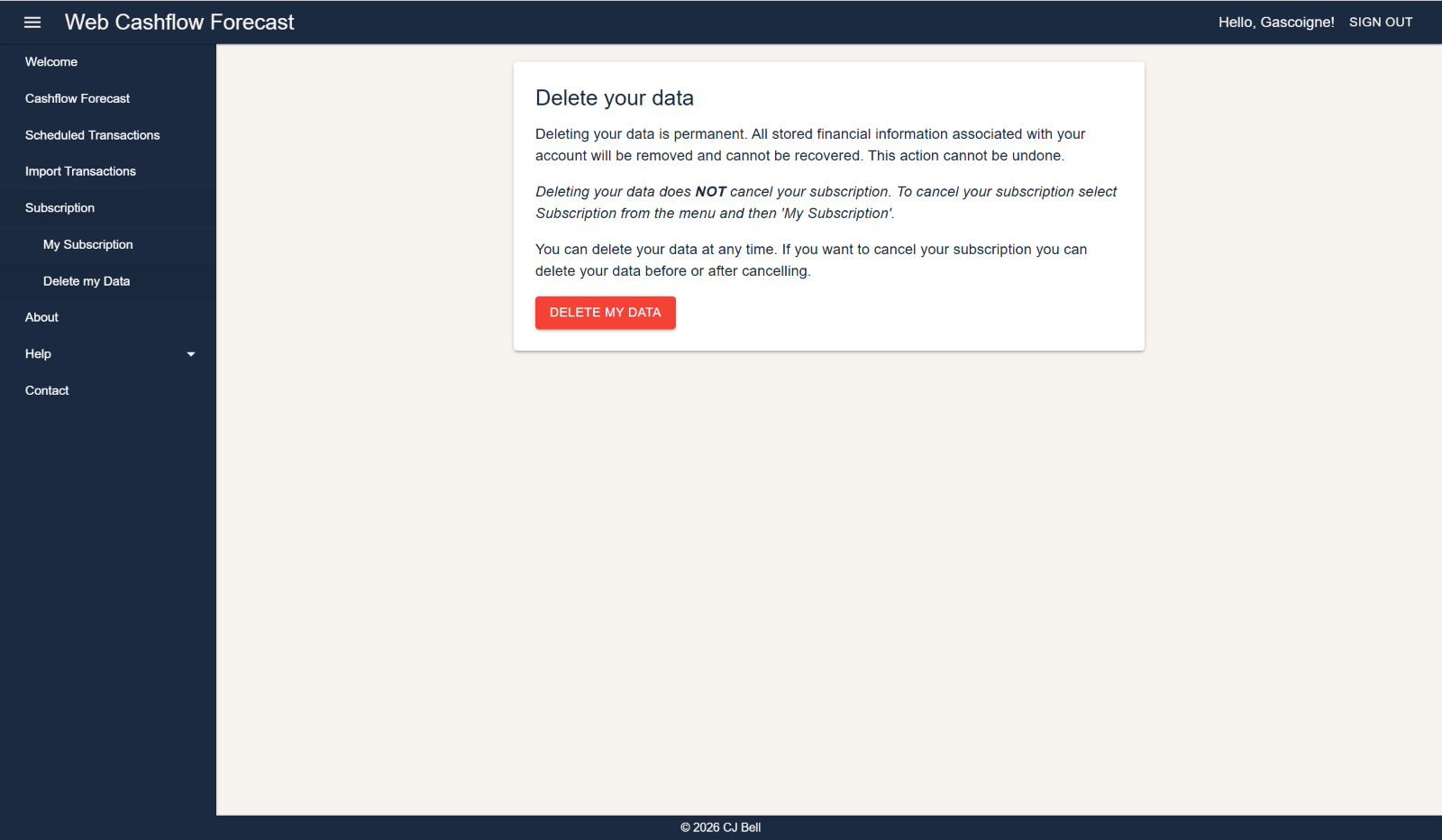
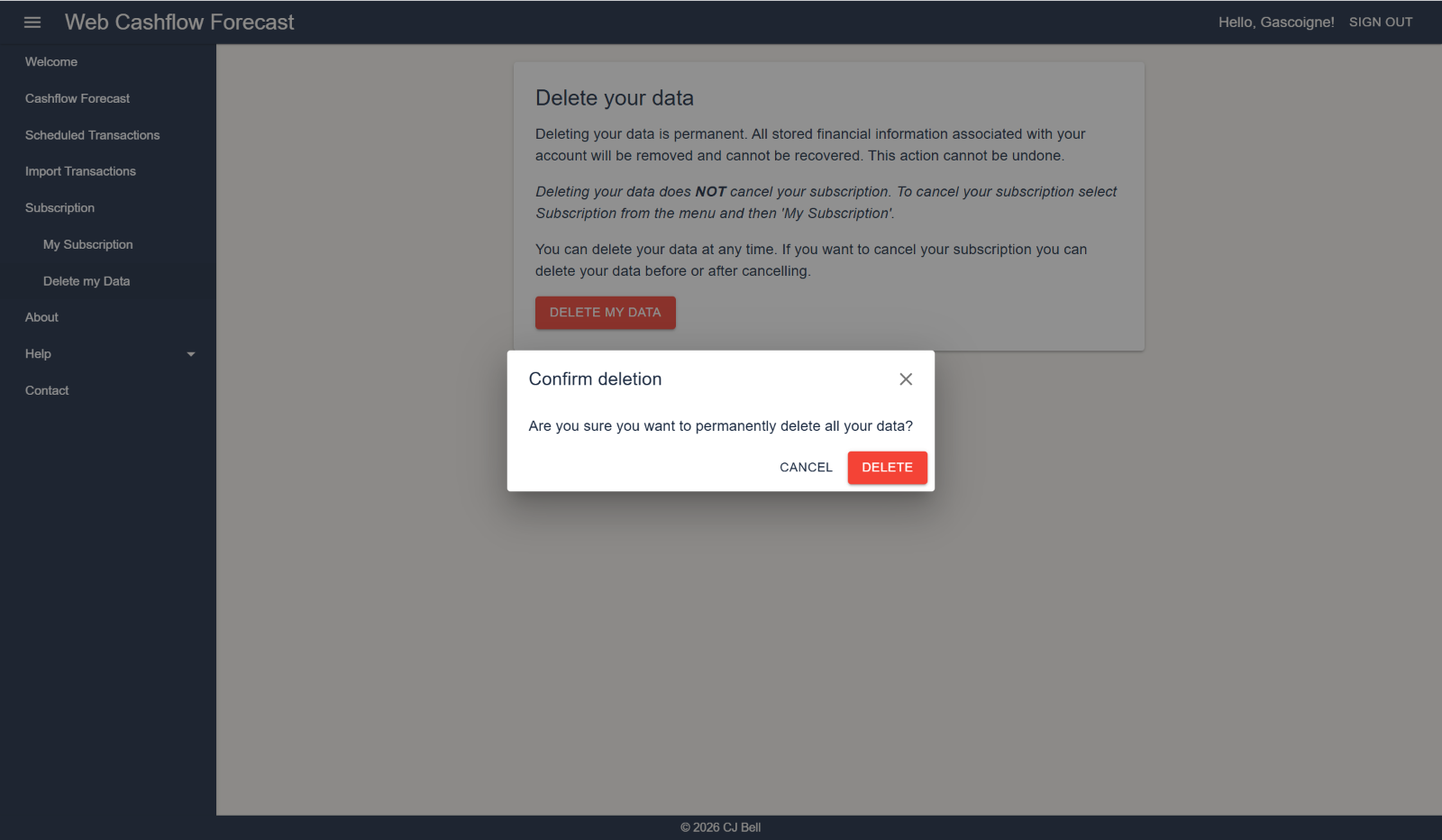
You can delete your data at any time by selecting 'Delete my data' from the menu. This will delete all your financial data but will NOT cancel your subscription. Please note that this action is irreversible and you will lose all your data.
If you want to cancel your subscription you can delete your data before or after cancelling.
Another possible reason for deleting your data is if you want to start again with a clean slate. For example, you may have been testing the application and entered some dummy data that you now want to remove.
Click to enlarge & Esc to close
Click to enlarge & Esc to close