
WebCashFlow: Importing Scheduled Transactions
Why import Scheduled Transactions?
In practice most users find the number of scheduled transactions they need to enter is probably significant, in some cases nearing a hundred or more. To enter these through the 'Scheduled Transactions' form is not difficult but can be a little tedious. This is where the Import Scheduled Transactions can make life a little easier.
But a word of caution. If you are not comfortable manipulating data in Excel, you might be better off using the Scheduled Transaction form.
Import Scheduled Transactions
To import Scheduled Transactions is a four-stage process
- Downloading an Excel Template
- Entering data in the Excel template
- Uploading the completed Excel file
- Importing valid transactions
To carry out these steps:
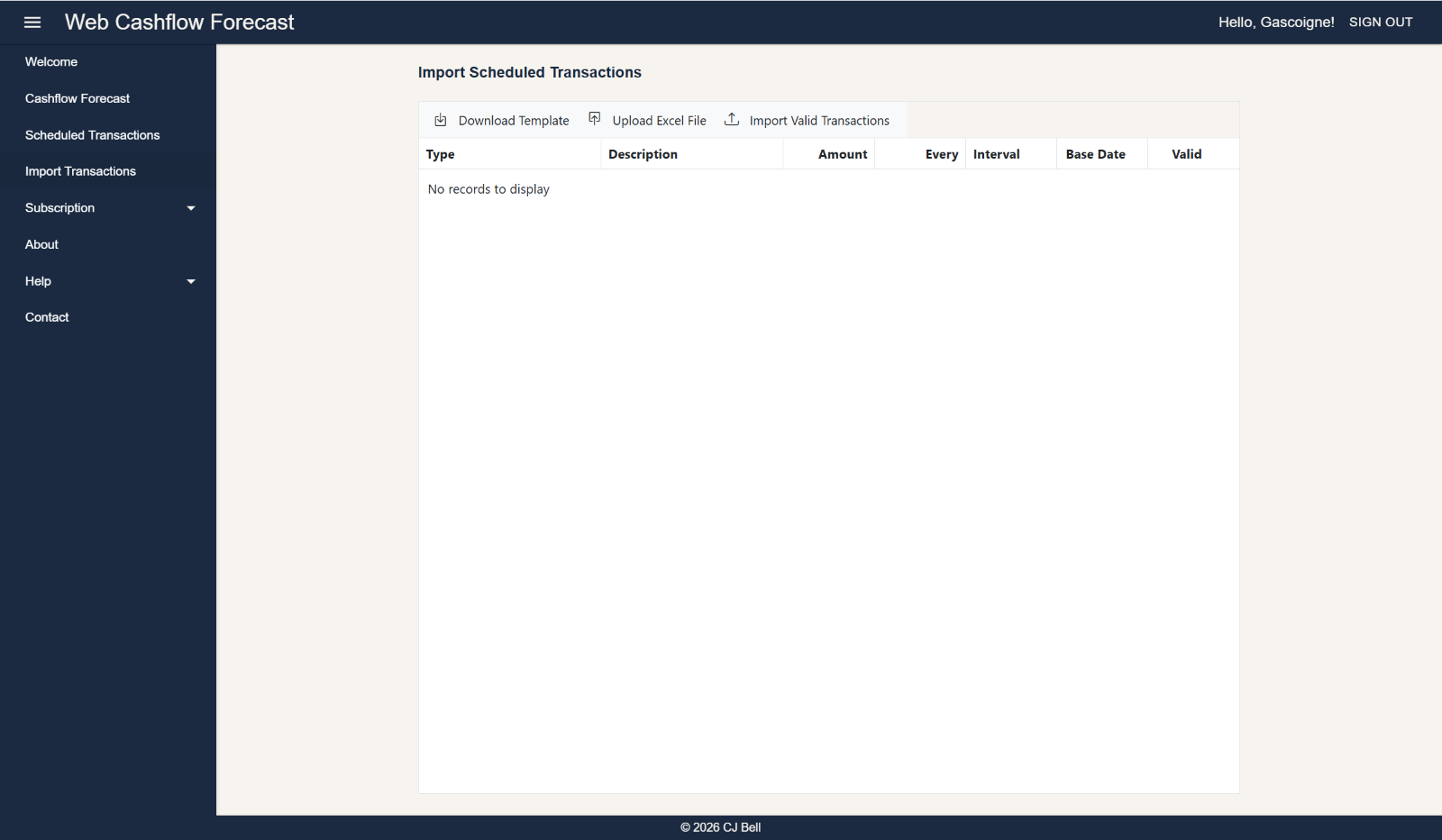
- Select Import Transactions from the menu, and the following page will be displayed.
Click to enlarge & Esc to close
Download Template
Click the Download Template button. An Excel file will be downloaded to your device/computer.
Enter Data into the Template
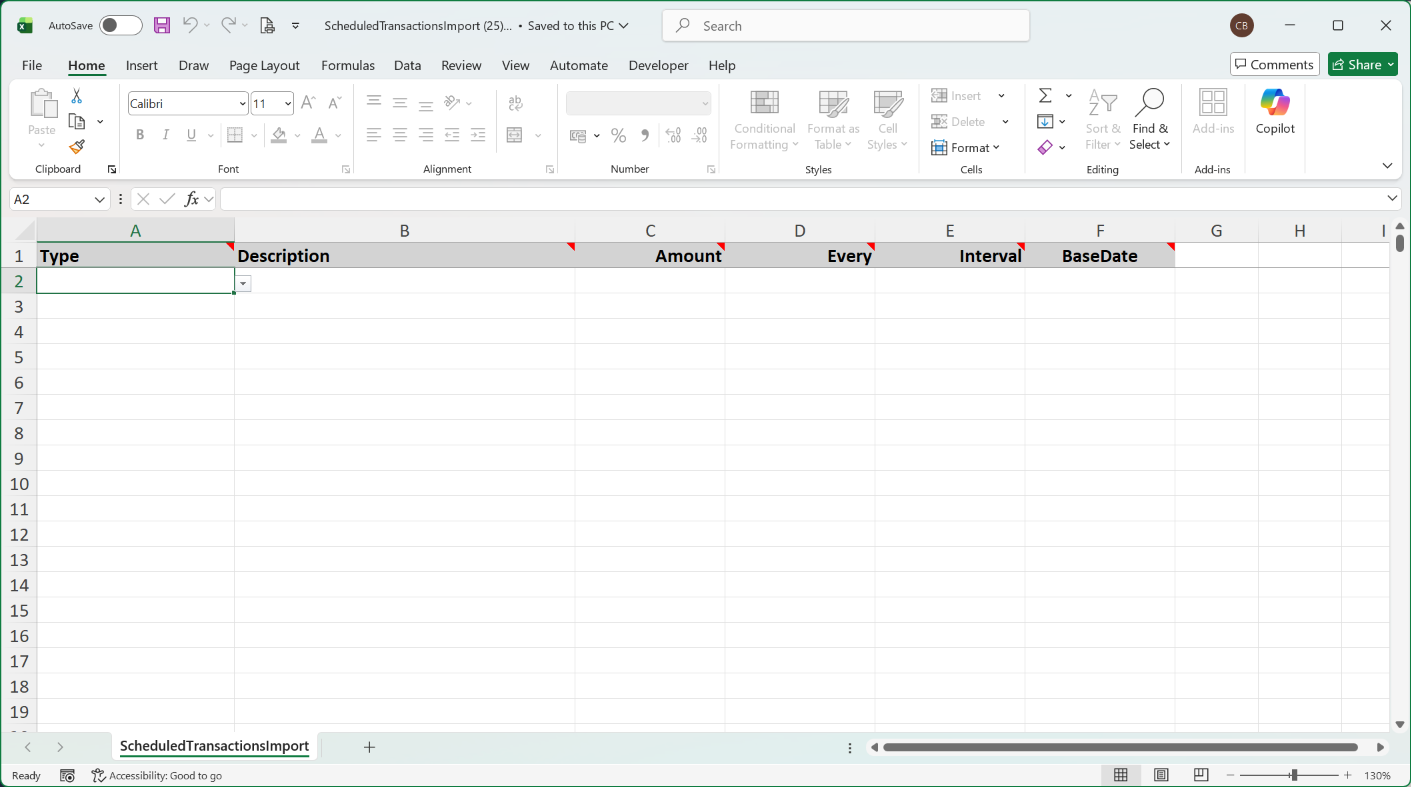
Open the downloaded Excel file. It will look like this:
Click to enlarge & Esc to close
There is a comment attached to each column header describing what needs to be inserted into the associated column. This is a slightly expanded explanation:
- Type Select from the dropdown, or enter manually, one of the 5 Transaction Types
- Description Enter a description for the Scheduled Transaction
- Amount Enter the amount of the receipt or payment. Always enter a positive amount - the application will handle the positive/negative sign according to the Type
- Every Enter a whole number for the frequency of the transaction (Interval)
- Interval Select from the dropdown, or enter manually, one of the 4 Interval categories
- BaseDate Enter the Base Date for the transaction. This must be in the format dd/mm/yyyy and must be after 01/01/2025
For those users skilled in manipulating data using Excel it might be possible to use a download of transactions from your banking app to populate this template. Or, some users might find it more convenient to use this template rather than using the Scheduled Transactions form.
There is a maximum is 499 row, but do not leave blank rows.
Save the Excel file with a location and name you can remember! Close Excel.
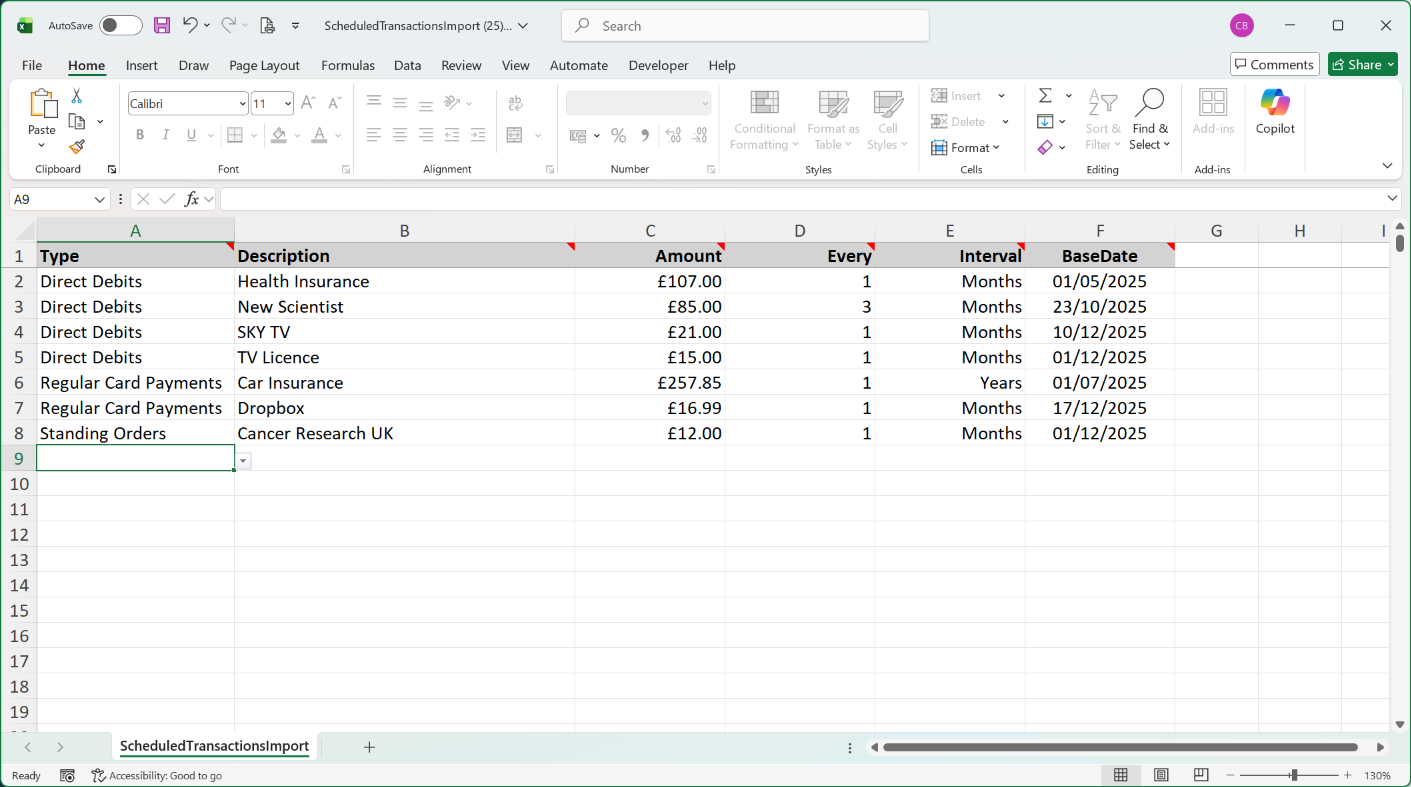
An example of a completed template is shown below:
Click to enlarge & Esc to close
Upload Excel File
Uploading an Excel file takes the data from the selected Excel file and places it in quarantine and validates it as it does so.
To upload Scheduled Transactions from Excel:
- click Upload Excel File
- A dialog opens,
- Click Browse and select the file to be uploaded
- If the upload is successful a message is displayed to indicate this, otherwise an error message will be shown.
- Click Process File
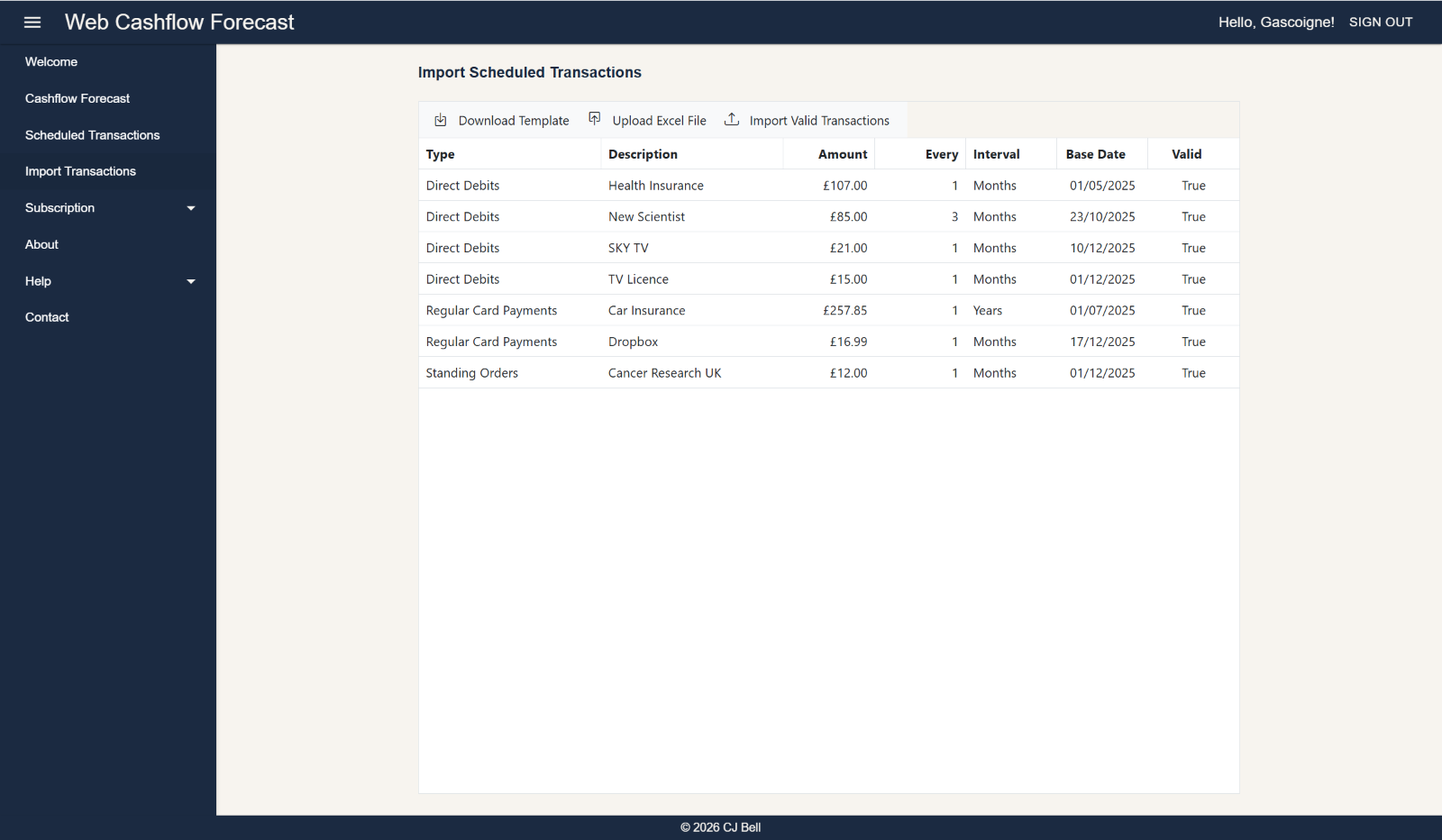
The uploaded, quarantined, transactions will be displayed in the grid. Notice that the column on the right will indicate whether the data is valid. Any invalid transactions will not be imported at the next stage.
If an uploaded transaction is found to be invalid it will marked as False in the Valid column. Clicking on the row will display the reason it has failed the validation tests.
Click to enlarge & Esc to close
Import Valid Transactions
To final stage is to Import Valid Transactions
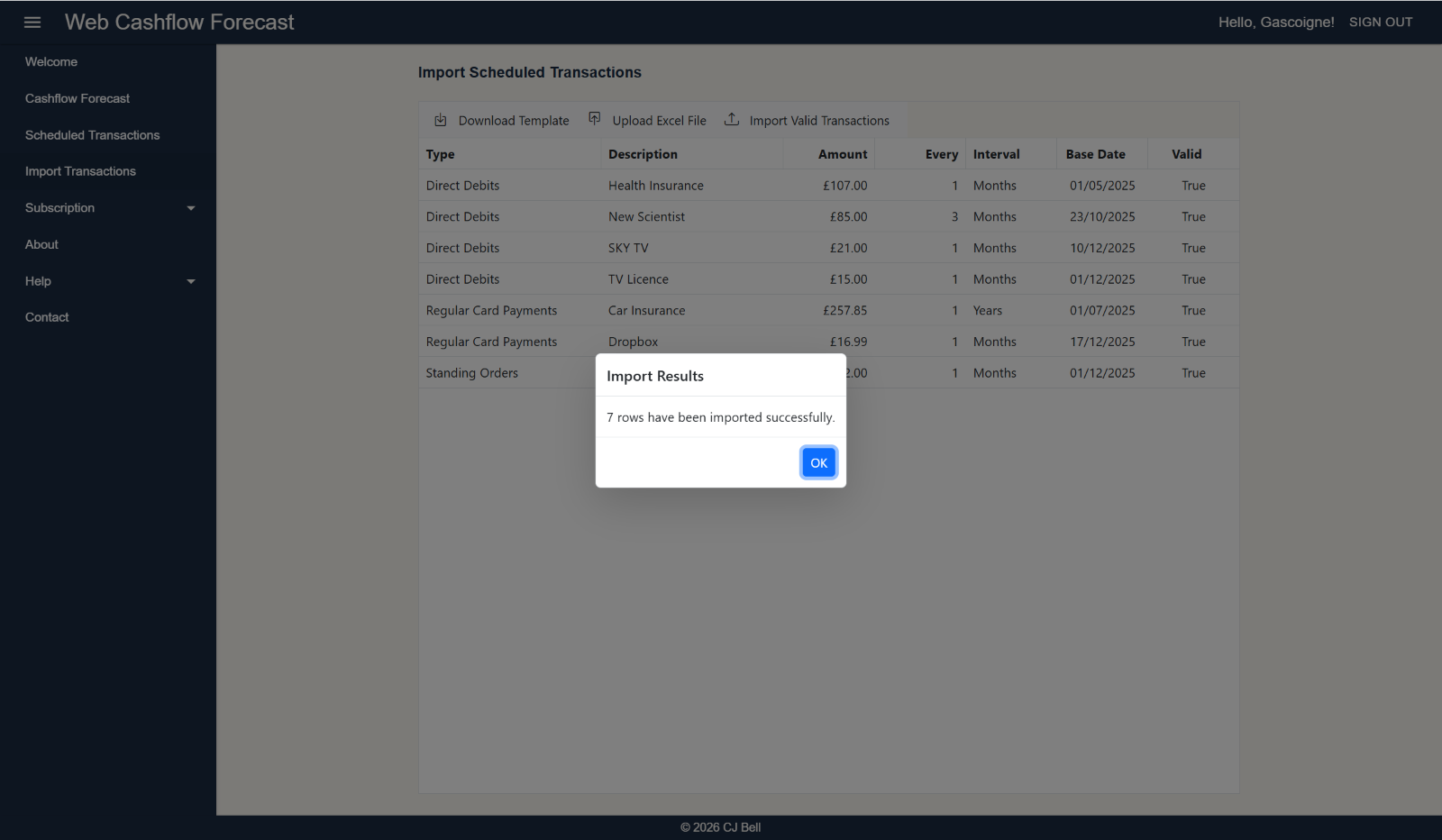
- Click Import Valid Transactions
- A message will be displayed indicating how many transactions have been imported successfully (and if any duplicates have been found and not imported).
- Click OK to dismiss the message and complete the process.
Notes
During import checks are made to ensure that duplicate Scheduled Transactions are not created. A duplicate is detected if all columns are duplicated; a different, say, Description, would not create a duplicate and would therefore be imported.
Click to enlarge & Esc to close
To watch a video on this subject click here: Importing Scheduled Transactions .